DriverPack Solution Offline Download: Which Pack to Pick and How to Use It
Learn how to choose the right offline pack, prepare a USB drive, install drivers on a PC with no internet, and keep your copy reasonably fresh.
Read the guide →Practical, tested walkthroughs for every stage of a driver job: picking the right package, extracting offline archives, using Expert Mode and getting clean results on Windows 7, 10 and 11.
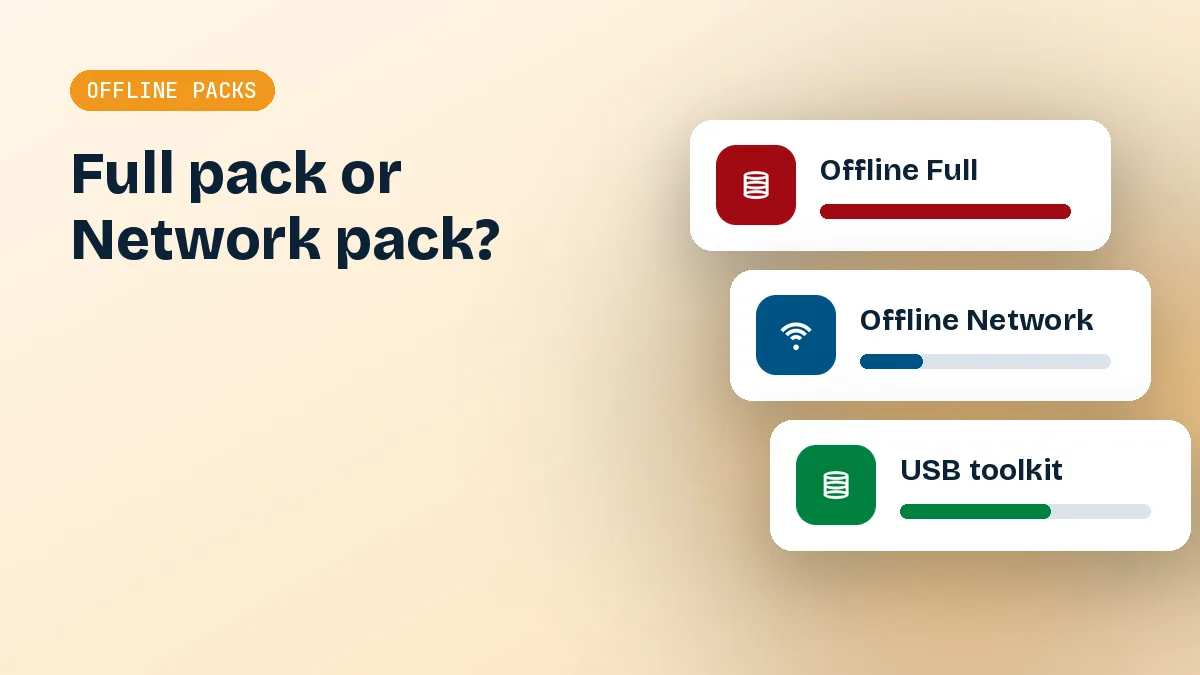
Learn how to choose the right offline pack, prepare a USB drive, install drivers on a PC with no internet, and keep your copy reasonably fresh.
Read the guide →See how the small online launcher detects your hardware, what the default and Expert Mode screens show, and how to fix common startup and download errors.
Read the guide →How to use DriverPack Solution on Windows 11 without trouble: what changed in the driver model, which warnings to expect, and how to roll back safely.
Read the guide →How to use DriverPack Solution on 64-bit Windows 10 alongside Windows Update, protect installed drivers from being overwritten, and verify results in Device Manager.
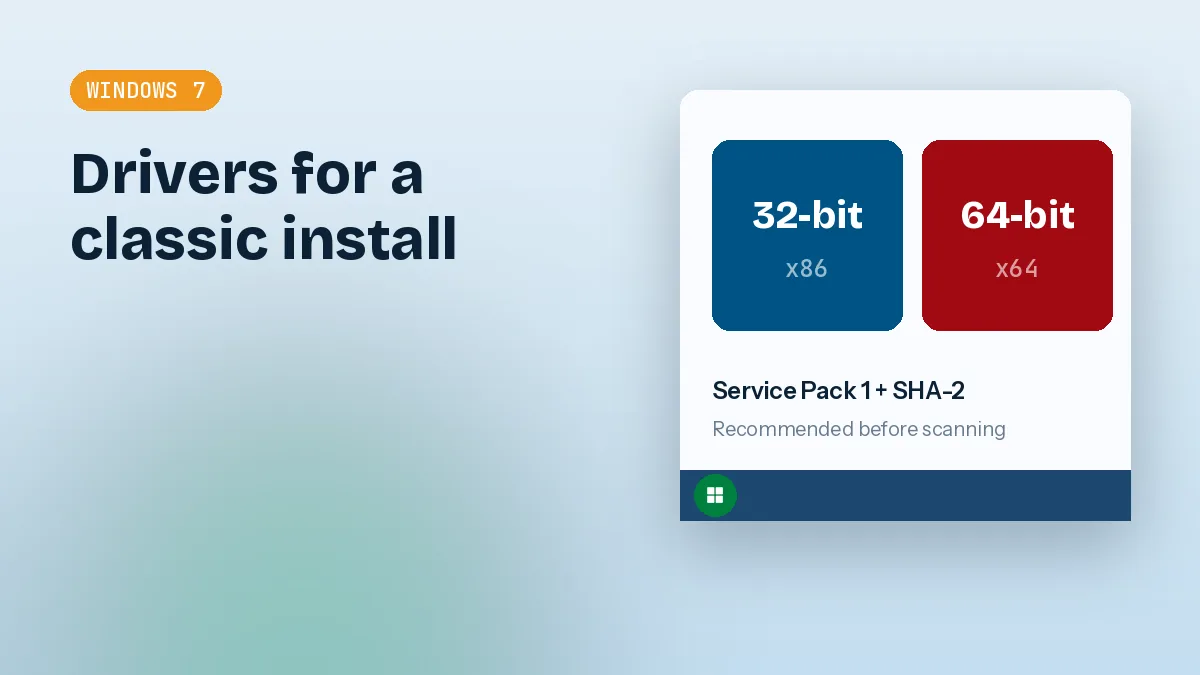
Read the guide →How to use DriverPack Solution on a fresh Windows 7 install, including 32 versus 64-bit, SHA-2 and TLS problems with the online launcher, and legacy hardware.
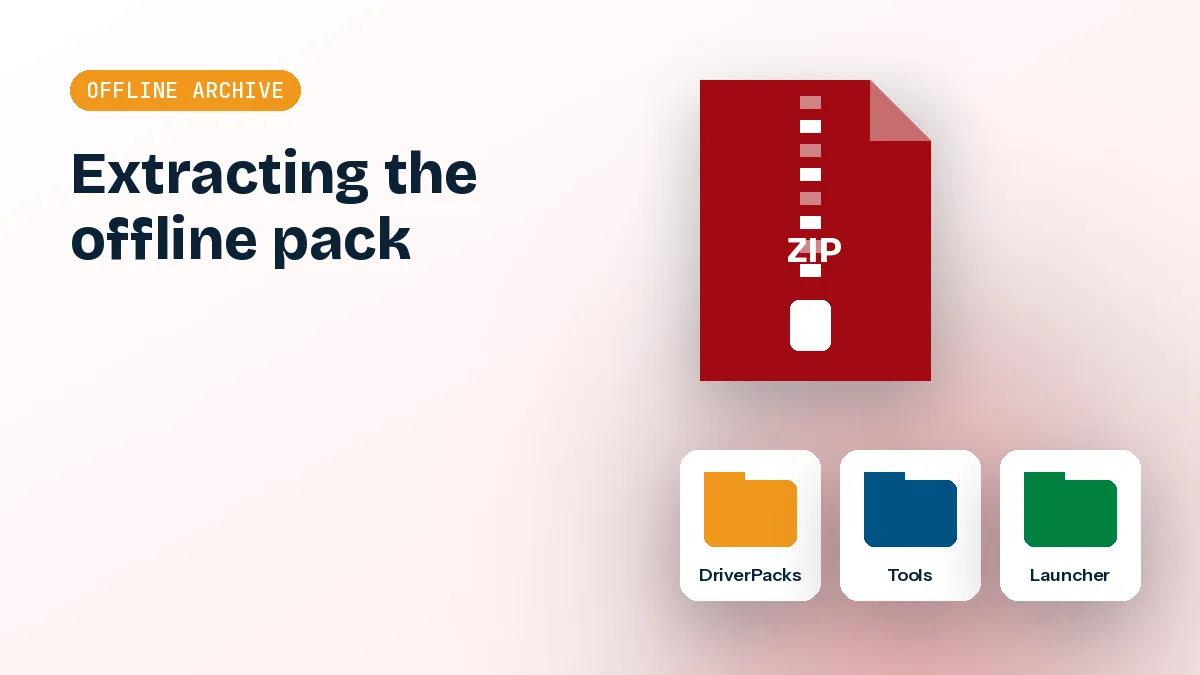
Read the guide →A practical walkthrough for handling the DriverPack Solution offline archive: extracting, checking it, building a technician USB and keeping the pack up to date.
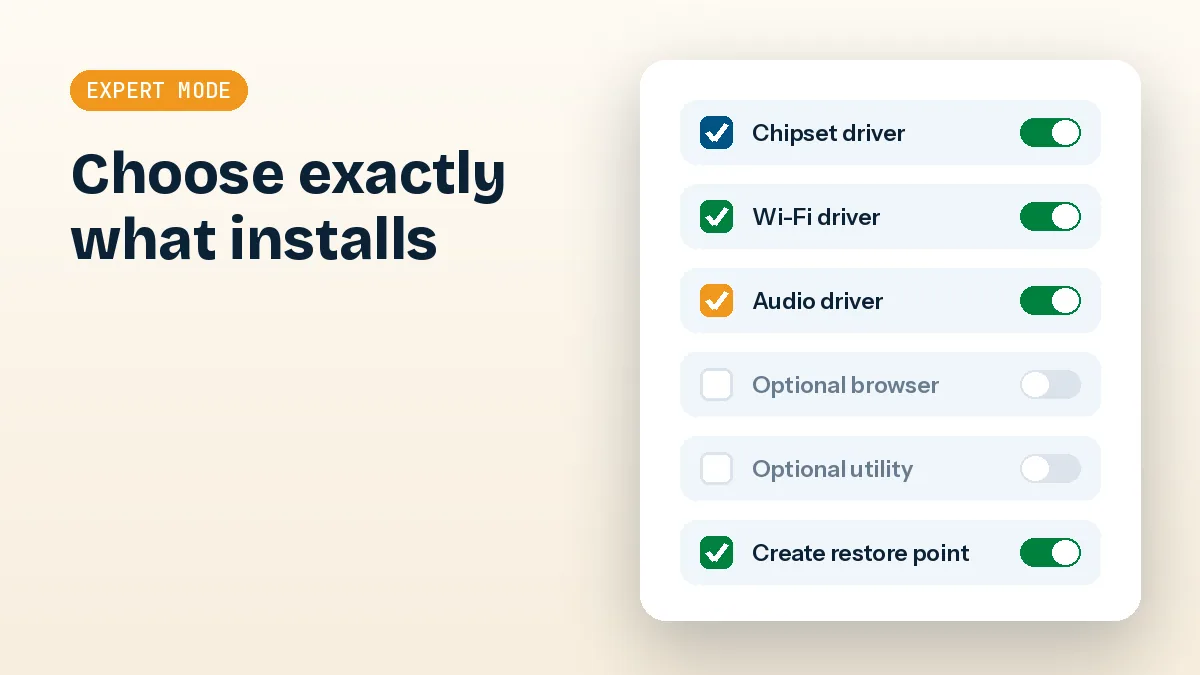
Read the guide →A hands-on walkthrough of DriverPack Solution Expert Mode, from reading the driver list to skipping bundled apps and installing only what you need.
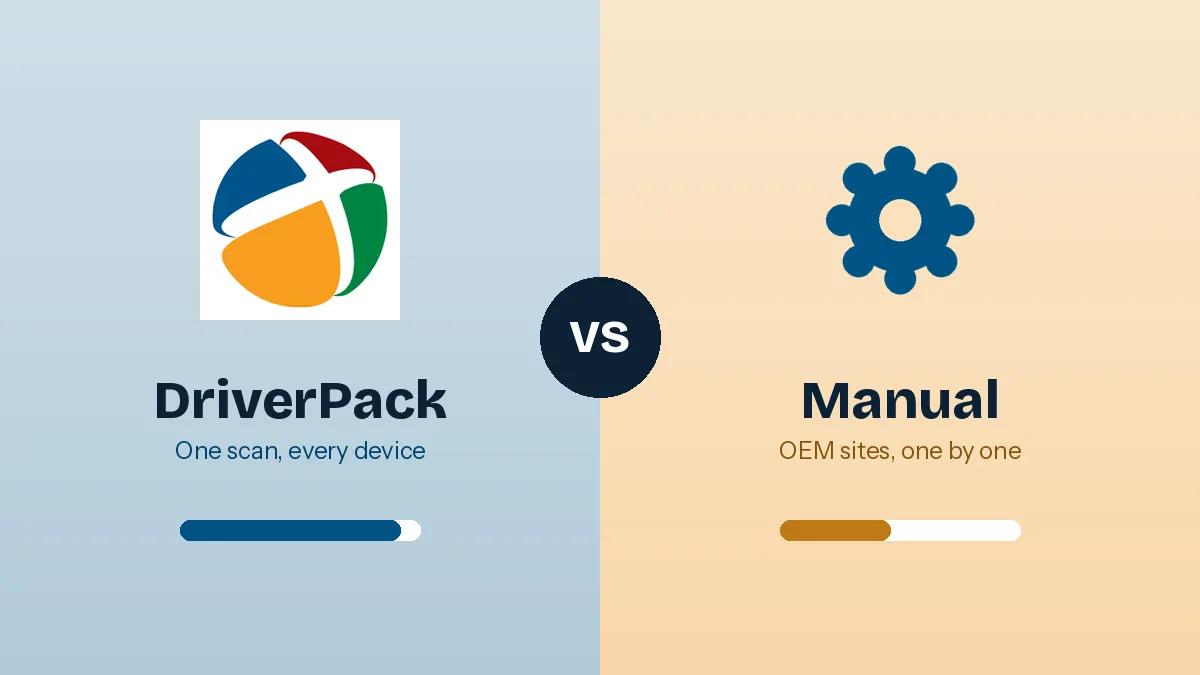
Read the guide →An honest comparison of DriverPack Solution against OEM sites, Windows Update, Device Manager and vendor tools, with advice on when each one wins.
Read the guide →