A clean Windows 7 install rarely finishes with a working machine. The desktop appears, but the network adapter is dead, the screen is stuck at a low resolution and the USB 3.0 ports ignore everything. This guide covers how DriverPack Solution Windows 7 setups usually go, and where they trip up.
What a fresh Windows 7 install is usually missing
Windows 7 shipped in 2009, so its built-in driver store knows nothing about hardware released in the last decade. Even a disc slipstreamed with Service Pack 1 only covers what existed at the time. On a modern or semi-modern board you should expect gaps, and the pattern is surprisingly consistent.
Chipset and USB 3.0 controllers
Windows 7 has no native driver for USB 3.0 (xHCI) controllers. On many boards the installer itself cannot see a USB keyboard or mouse plugged into a blue port, which is a miserable way to start. If that happens, switch to a USB 2.0 port or a PS/2 device until the controller driver is in place.
Chipset drivers are the other quiet gap. Without them, Device Manager shows a pile of "Base System Device" and "PCI Device" entries. The machine runs, but power management, SATA behaviour and some bus features are not set up properly. Installing the chipset package first tends to clear several unknown devices in one go.
Network and graphics
The Ethernet or Wi-Fi adapter is usually the real blocker, because without it you cannot download anything. Realtek and Intel gigabit controllers are often recognised by the default Windows 7 store, but newer revisions and almost all recent Wi-Fi cards are not. Graphics falls back to the Microsoft Basic Display Adapter, which is why everything looks stretched and sluggish.
The order that works in practice is network first, then chipset and USB, then graphics, then audio and everything else. Fixing the network early means the online tools can finally do their job.
Choosing between 32-bit and 64-bit
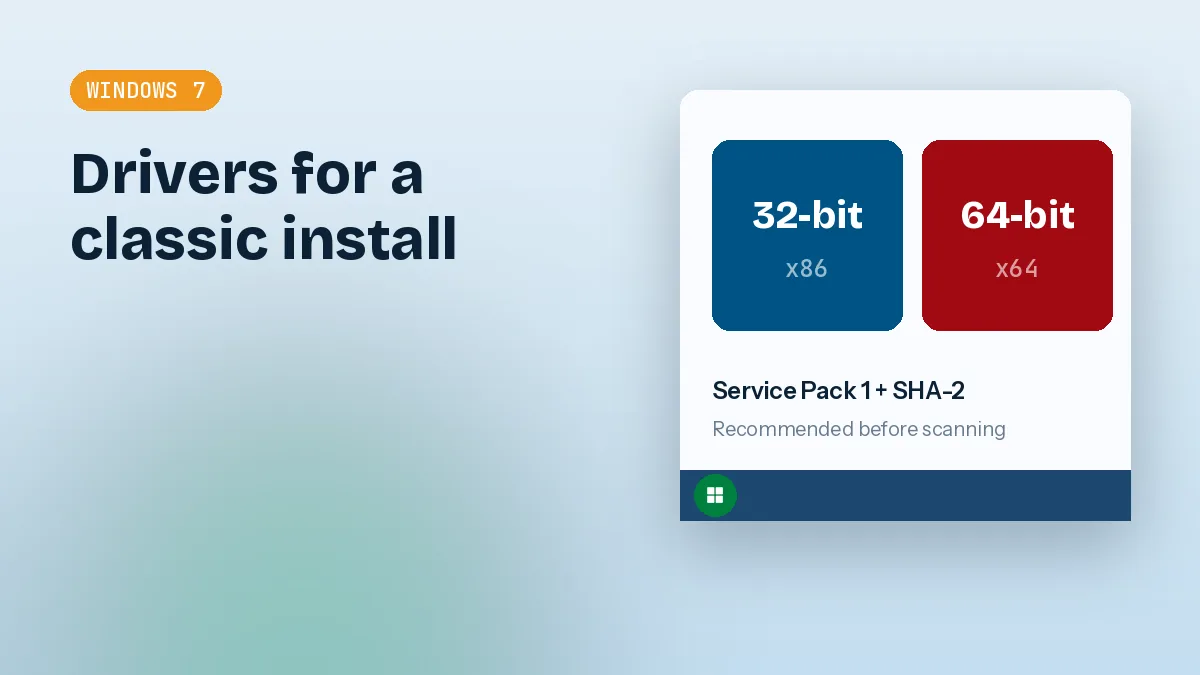
Driver packages are built for a specific architecture. A 32-bit driver will not load on a 64-bit system, and the reverse is also true. Getting this wrong is a common reason people think a driver tool "did nothing".
How to check which edition you are running
Right-click Computer, choose Properties, and look at "System type". It will say either 32-bit Operating System or 64-bit Operating System. That tells you what you installed, not what your CPU can do. A 64-bit processor running 32-bit Windows 7 is common on older office machines.
If you have 4 GB of RAM or more and the CPU supports it, a 64-bit install is almost always the better choice. People searching for DriverPack Solution Windows 7 64 bit are usually in exactly this situation: a 64-bit install on newer-ish hardware that needs a long list of drivers.
What the mismatch means for driver packs
DriverPack Solution identifies your system and selects drivers to match, so you normally do not have to pick an architecture by hand. The launcher itself is a Windows executable and runs on both. Where trouble starts is when you copy drivers from another computer, or an old backup, onto a different edition. If a device refuses a driver with a "not compatible" style message, check the edition first before blaming the pack.
Why the online launcher struggles on an unpatched Windows 7
This is the part most guides skip. Windows 7 reached end of support in January 2020, and a fresh install from an old disc has none of the later fixes. Modern web services have moved on, and an unpatched copy of Windows 7 can fail to talk to them.
SHA-2 and certificate trust
Websites and download servers now use certificates signed with SHA-2. Windows 7 only gained proper SHA-2 signing support through a later update (Microsoft published it as KB4474419, with a servicing stack update needed first). Without it, signed files and secure connections can be rejected. The symptoms vary: a blank launcher, an error about a certificate, or a download that never starts.
Older TLS settings
Windows 7 SP1 can use TLS 1.2, but it is not switched on by default for every component. If the system components that handle web requests are limited to older protocols, a server that insists on TLS 1.2 will simply refuse the connection. Internet Explorer 8, which ships with Windows 7, is a related headache because some applications borrow its settings.
Patching the machine fixes this, but you need a working connection and the right updates in the right order, and that is a lot of effort for one driver job.
Why the offline pack is often the better route
This is where the offline versions earn their place. DriverPack Solution Offline download options include a very large full pack for machines that have no internet at all, and a much smaller network-only pack designed to get a LAN or Wi-Fi adapter working first. Both are meant to run without fetching anything at install time.
For an unpatched system, the sensible plan is to get the network pack onto a USB stick from another computer, install the adapter driver, and then decide whether to continue offline or let Windows reach the internet. If you need the whole lot in one pass, the DriverPack Solution offline zip file route avoids every certificate problem, because nothing has to be negotiated over the network. You can find the available options on the download section.
Always scan a downloaded offline package on a machine you trust before moving it to the Windows 7 computer by USB. Old Windows 7 installs rarely have current antivirus definitions.
Step-by-step: drivers on a fresh Windows 7 system
Here is the sequence I use on a clean install. It assumes you are starting from a new Windows 7 SP1 setup and a second working computer is available.
Before you start
- Note your edition under Computer, Properties, System type.
- On the other computer, download the offline package you need. For a machine with no network at all, begin with the small network pack.
- Copy it to a USB stick. Use a USB 2.0 port on the target PC if the blue ports are dead.
- Write down the exact model of the motherboard or laptop. If something goes wrong, you will want it.
Create a restore point before changing anything. Open Control Panel, then System, then System Protection, and confirm protection is on for the system drive. DriverPack Solution can create a restore point itself as well, but a manual one costs nothing.
Run it, and use Expert Mode
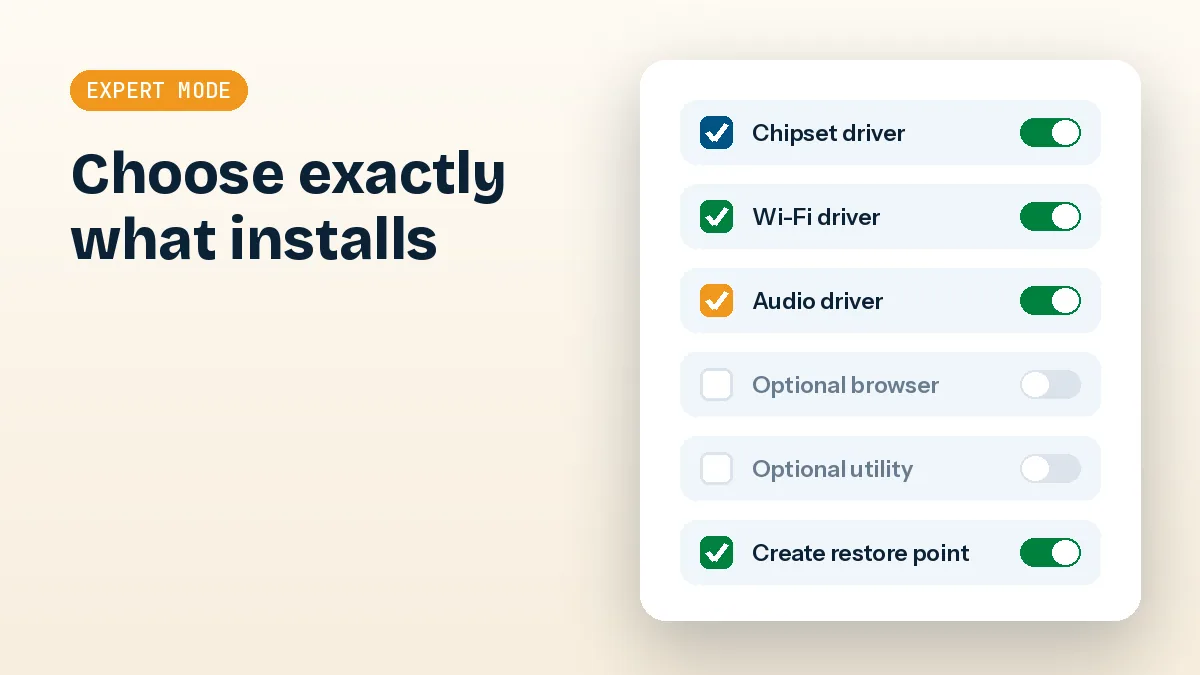
Launch the tool as administrator. The default screen offers an automatic install of everything, including extra software bundles. Skip that. Switch to Expert Mode, where you can untick the bundled programs and choose which drivers go in.
Select the network, chipset and USB drivers first. Leave the rest for a second pass. Installing everything at once on Windows 7 is possible, but if a single bad driver causes a blue screen you will not know which one it was.
Reboot and verify
Restart when asked, even if nothing appears to need it. Then open Device Manager from the Start menu search. You are looking for the yellow warning icons to disappear and for the generic names to be replaced by real ones. Right-click a device, open Properties and check the Driver tab for a sensible provider and date.
Repeat for graphics, audio and the remaining devices. Reboot again at the end. Two rounds is not overkill, and it makes problems easier to trace.
Legacy hardware and what to do when nothing matches
Windows 7 is often kept alive for a reason: an old scanner, a serial card, a lab instrument, or a CNC controller that depends on a specific driver. These are the cases where an automatic tool is least reliable.
Old devices and unsigned drivers
Very old hardware may have drivers that were never updated, or that are unsigned. On 64-bit Windows 7, driver signature enforcement is on by default and will block anything unsigned. You can allow it temporarily by pressing F8 at boot and choosing the option that disables enforcement, but that is a one-session workaround, and it should be a deliberate choice rather than a habit.
A database-driven installer also tends to favour the newest generic driver for a hardware ID. For specialised equipment, the manufacturer's original package is usually the safer match, even if it is old.
When the pack has no match
If a device stays as "Unknown device", open its Properties, go to Details and choose Hardware Ids. Copy the VEN and DEV values (or VID and PID for USB). Searching those two codes will usually identify the chip and the vendor. Sometimes the answer is that no Windows 7 driver exists at all, because the manufacturer never wrote one. That is more common with newer Wi-Fi 6 cards and recent integrated graphics than people expect.
In that situation the honest options are a different network card, a USB adapter with a Windows 7 driver, or moving to a newer version of Windows.
A practical way to finish
Treat a Windows 7 build as a controlled job rather than a one-click fix. Keep the edition straight, get the network working first, use Expert Mode so you are not accepting extras you did not choose, and lean on an offline pack when the online launcher cannot connect securely. Check Device Manager after every pass and keep a restore point behind you. If you are heading to the download page for the package, pick the one that matches the situation you actually have.