A DriverPack Solution Offline download is the answer to a very specific problem: a freshly installed Windows PC with no working network adapter and no way to fetch anything. This guide covers which pack to grab, how to prepare a USB drive properly, how to run the install step by step, and how to keep your copy useful over time.
Which Offline Pack Do You Actually Need?
DriverPack Solution ships its offline editions in two very different sizes, and picking the wrong one wastes either a long download or an evening of frustration. The decision is simpler than it looks once you ask one question: does the target PC have any way to get online after Windows is installed?
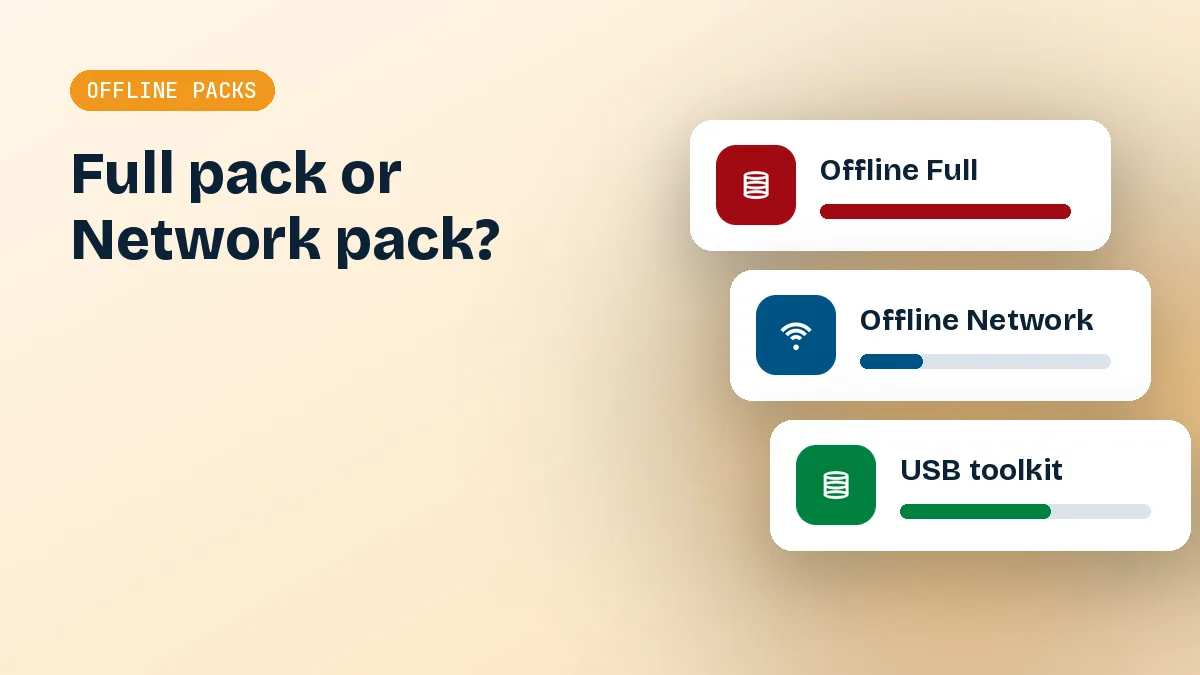
Offline Network: the small rescue pack
This one contains drivers for wired Ethernet and Wi-Fi adapters, and not much else. It is typically a few hundred megabytes, so it fits on practically any USB stick and downloads quickly even on a weak connection. The idea is to get a stubborn machine online, then let the regular online installer fetch everything remaining. If your problem is "Windows installed fine but there is no internet icon," start here.
One caveat: the Network pack only knows the adapters it was built with. A very new Wi-Fi card, or a USB dongle from a small brand, may not be in it. When that happens, the fallback is the oldest trick in the book: download the adapter driver from the manufacturer on another computer, and carry it across on a stick.
It is also the sensible pick for repair shops. You carry one small pack, plug it into whatever just got reinstalled, and move on.
Offline Full: the everything pack
The full pack is the opposite: a very large multi-gigabyte collection, often tens of gigabytes, covering chipsets, graphics, audio, card readers, printers and a long tail of older hardware. It is built for machines that will never see the internet, or for technicians who reinstall many different PCs a day and cannot rely on a connection at every desk.
If you are setting up a single home laptop with working Wi-Fi, the full pack is overkill. Use the standard download instead and save the disk space.
What Is Inside the Offline Packs
Neither pack is a single installer in the usual sense. Both are a launcher plus a driver database. The launcher scans your hardware IDs, matches them against the bundled database, and installs the matching entries. Nothing is fetched from the internet during that step, which is the whole point.
Driver coverage and what it means in practice
The full pack is organised by hardware category and Windows version, so it carries separate driver sets for older systems such as Windows 7 and newer ones such as Windows 10 and 11. Coverage is broad, but "broad" is not "complete." Brand-new laptops, unusual touchpads and vendor-specific power management drivers may be missing or older than what the manufacturer offers. Treat the pack as a strong first pass, not a guarantee.
Another thing worth knowing is that the database matches by hardware ID, not by brand name. Two laptops with the same model name can contain different Wi-Fi chips depending on the production batch, and the tool handles that correctly because it reads what is physically installed. That is a real advantage over grabbing drivers by model number from a support page, where a wrong guess is easy.
Quick comparison of the two packs
| Feature | Offline Network | Offline Full |
|---|---|---|
| Main purpose | Get LAN and Wi-Fi working | Install every driver without internet |
| Approximate size | A few hundred MB | Many GB, often tens of GB |
| Best storage | Any USB stick | Large USB drive or external disk |
| Typical user | Home user with no connection after a reinstall | Technician or air-gapped PC |
| Follow-up needed | Yes, online installer for the rest | Usually none |
Preparing Storage and a USB Drive
Most failed offline installs come down to preparation, not the software. A few minutes here saves a lot of head-scratching later.
Check free space and the file system first
Download the pack on a machine that is online, and make sure that machine has room for both the download and, if it arrives as an archive, the extracted copy. The full pack especially can need double the space during extraction.
Then look at how your USB drive is formatted. FAT32, still the default on many cheap sticks, cannot hold a single file larger than 4 GB. If the offline zip file or any file inside it exceeds that, the copy will fail partway through, sometimes with a vague error. Reformat the drive as NTFS or exFAT before copying. Back up anything on it first, because formatting erases everything.
Copy, extract and sanity-check
Copy the archive to the drive, then extract it on the drive or on the target PC's local disk. Extracting from a USB drive works, but a local SSD or hard disk is faster and avoids timeouts on slow sticks. After extraction, open the folder and confirm the launcher executable sits alongside its driver folders. Missing folders usually mean an interrupted download or a corrupted archive.
Keep a second copy of the pack on a different drive. Large archives are exactly the kind of file that gets damaged by one bad sector or a half-pulled USB stick, and re-downloading tens of gigabytes is no fun.
Running It on a PC With No Internet
With the pack ready, the actual installation is routine. The details matter mainly on older systems and on machines with security software already running.
Launching the pack and letting it scan
Plug in the drive, open the folder, and run the launcher as administrator. It will scan the system, list devices that lack drivers or have generic Microsoft ones, and propose an install. Give the scan a minute or two on slower hardware. The tool works across 32-bit and 64-bit editions, so on a DriverPack Solution Windows 10 64 bit setup it will pick the 64-bit driver variants without you choosing anything.
Expect the first scan to be slower from a USB 2.0 stick than from an internal drive. If the progress bar seems frozen on a large pack, give it a few extra minutes before assuming it has hung, and avoid unplugging the drive mid-run.
Older machines are where the offline route shines. A DriverPack Solution Windows 7 install, and in particular DriverPack Solution Windows 7 64 bit, often lacks even a basic network driver and cannot reach modern download servers. An offline pack sidesteps both issues. On the other end, a DriverPack Solution Windows 11 machine that lost its Wi-Fi after a clean install can recover through the Network pack in minutes.
Use Expert Mode and create a restore point
Do not just accept the default screen. Switch to Expert Mode, where you can see exactly which drivers will be installed and untick anything you do not want. This is also where bundled software offers appear, so deselect any extra apps unless you want them. Offline packs may show fewer of these than the online launcher, but check regardless.
Before installing, let it create a restore point. If a graphics or chipset driver misbehaves, you can roll the system back instead of reinstalling Windows. Installing in small batches, chipset first, then graphics, then everything else, also makes problems easier to trace.
If your antivirus complains
Some security tools flag the launcher as a potentially unwanted program, mostly because of the optional software offers it can include. That is a classification matter rather than proof of malware, but it is still a reason to download only from a source you trust and to verify the file before running it. If the scanner blocks the launcher on an offline PC, check the detection name before deciding to create an exception.
Keeping Your Offline Pack Current
An offline pack is a snapshot. The day you download it is the day it starts getting old, and that matters more for some drivers than others.
How often to refresh it
For network, chipset and audio drivers, an older pack is usually fine; those rarely change in ways that affect stability. Graphics drivers age faster, especially if you play recent games or use new creative software. A reasonable habit is to refresh your pack every few months, or whenever you are about to service a batch of newer machines. If you keep one on a toolbox drive, put the download date in the folder name so you know how stale it is.
Replacing an old pack safely
When you download a newer version, do not overwrite the old one until the new copy has been extracted and tested on at least one machine. Keep the previous version for a while. If the new pack has a regression on a specific model, you will be glad to have the earlier one. You can also browse our other guides for notes on troubleshooting failed installs and checking which drivers a given PC really needs.
After installing from an offline pack, connect the PC to the internet once and run Windows Update. It will often supply newer versions of the drivers you just installed, and that combination of an offline base with online top-ups is the most reliable approach.
Finally, reboot after the installation even if nothing asks you to. Chipset and storage drivers in particular do not fully take effect until a restart, and a second look at Device Manager afterwards will show whether any yellow warning icons remain. Anything still flagged is worth searching by hardware ID, since it may simply not exist in the pack. If that happens on a laptop, the manufacturer's support page is usually the quickest fix for the one or two stragglers.
Final Thoughts Before You Download
If your PC has no connection, grab the Network pack first, get online, and let the lighter online route handle the rest. Choose the full pack only when internet access is genuinely off the table or you service many different machines. Format the USB drive correctly, keep a spare copy, use Expert Mode, create a restore point, and refresh the pack now and then. Do those few things and an offline install is dull in the best way: it simply works.