Running DriverPack Solution Windows 11 is perfectly possible, but the operating system is stricter than Windows 7 or 10 ever were. Drivers are packaged differently, security features can refuse old files, and the launcher itself may trigger a warning. Here is how to work with all of that sensibly and safely.
How Windows 11 changes the driver picture
DCH drivers and why they matter
Modern Windows drivers follow the DCH model: declarative, componentized and hardware support apps. In plain terms, the driver itself is a lean package, and any control panel or extra utility ships separately, usually through the Microsoft Store. Windows 11 expects this structure, and most hardware makers have moved to it.
Why should you care? Because a driver database built over many years contains a mix of old-style and newer packages. DriverPack Solution detects hardware IDs and installs a matching driver from its database, but "matching" does not always mean "newest" or "designed for Windows 11". An older INF-style package can install fine and still behave oddly, or lack the companion app you expected.
For a plain network adapter, card reader or chipset component, the difference rarely shows. For audio, graphics and touchpads, where the vendor app does real work, it shows up quickly.
Memory Integrity and Core Isolation
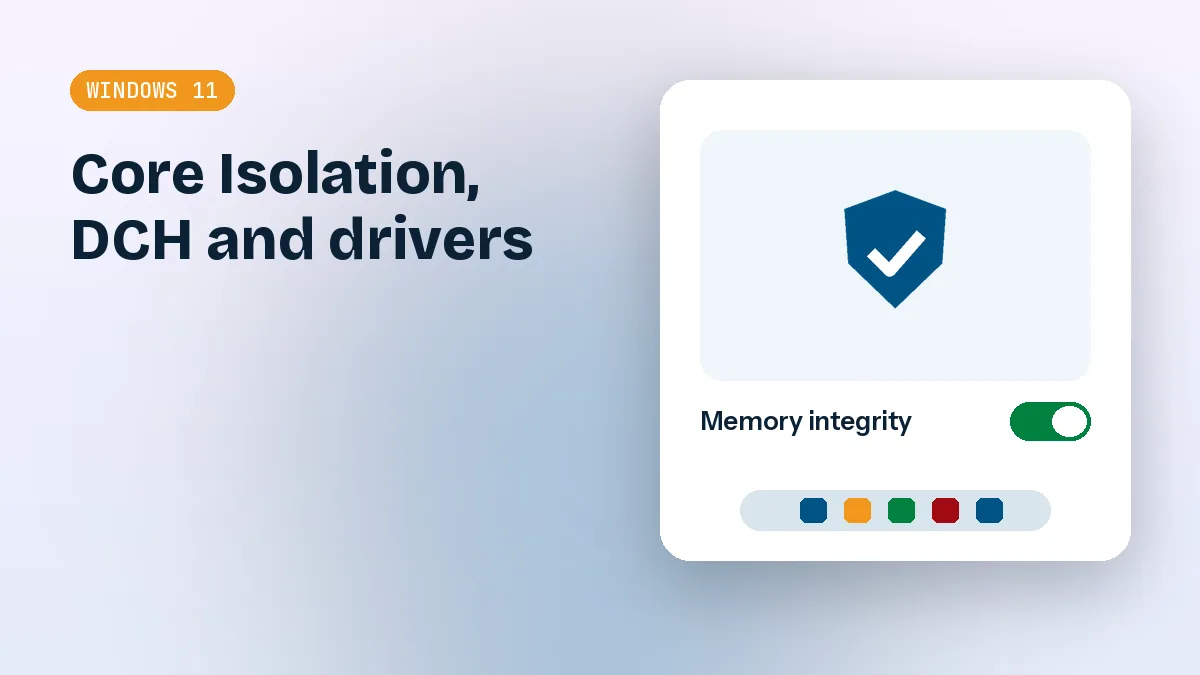
This is the one that catches people out. Memory Integrity, found under Windows Security, Device security, Core isolation, runs driver code in a protected virtual environment. A driver that cannot run safely there gets blocked. On a fresh Windows 11 installation, Memory Integrity is often switched on by default, particularly on newer hardware.
If an older driver is incompatible, you may see a message saying the driver could not be loaded, or the device simply never starts. Device Manager will show a yellow warning triangle, and the properties page may mention that Windows cannot load the driver for this hardware. Windows Security usually lists the offending driver file under "Review incompatible drivers".
The fix is not to turn Memory Integrity off. That setting protects the whole system, and disabling it just to make one ancient driver work is a poor trade. Better options are to use a newer driver for that device, let Windows Update supply one, or accept that the hardware is too old for Windows 11.
Hardware that Windows 11 already handles well
Windows 11 ships with a large inbox driver collection and can fetch more through Windows Update the moment you connect to the internet. Most USB devices, standard displays, storage controllers, keyboards, mice and common Wi-Fi chips work with no help at all. If Device Manager shows no warning icons and your hardware does everything you expect, you probably do not need a driver tool today.
Getting the launcher to run without drama
SmartScreen and Smart App Control warnings
Download the launcher and run it, and you may meet a blue "Windows protected your PC" window from SmartScreen. That appears for executables with little reputation history or without a widely recognized signature, and it does not by itself mean the file is malicious. Click More info, check the file name and publisher line, and only then choose Run anyway.
Smart App Control is stricter. On machines where it is enabled, which is generally those that started life on a clean Windows 11 installation, it can block an unrecognized application outright, with no "run anyway" button. Turning it off is possible in Windows Security under App and browser control, but it is a one-way switch on most builds: once off, you cannot turn it back on without resetting Windows. Think twice before doing that for a single download.
If Smart App Control is blocking the file, consider whether you need the launcher on this machine at all. A manual download of one specific driver from the hardware maker avoids the whole question.
Antivirus flags and bundled offers
Some antivirus products classify the online launcher as a potentially unwanted application, or PUA. The reason is the bundled offers the launcher presents by default, such as browsers, utilities or other software. Those are not drivers, and you do not have to accept them. Expert Mode lets you untick the extras and choose the drivers one by one.
A PUA detection is a different thing from a verdict that the file is a virus, but it is still a signal to slow down. Download only from a source you trust, scan the file, and read every screen before clicking Next. That habit is worth more than any setting, and it applies equally to the Windows 10 64-bit machines you may still be supporting alongside Windows 11 ones.
A safe workflow, step by step
The workflow below assumes a machine you actually care about, such as a family laptop or a work desktop. On a throwaway test PC you can be looser, but the habits are worth practising anyway.
Prepare before you install anything
Spend five minutes here and you save an afternoon later.
- Make sure Windows Update has run first. Install pending updates and restart. Windows may already fix your missing drivers.
- Open Device Manager and note every device with a warning icon. Screenshot the list.
- Back up anything you cannot replace. Driver changes seldom destroy data, but a failed graphics driver on a laptop is a stressful time to find out.
- Create a restore point manually (search for "Create a restore point", then Create). DriverPack Solution can create one as well, but doing it yourself confirms System Protection is actually enabled.
Use Expert Mode, not one-click mode
The default screen offers a big install button that handles everything. On Windows 11 I would not use it on a machine you care about. Switch to Expert Mode instead. There you can untick bundled software, see which drivers are proposed, and deselect the ones you would rather leave alone.
Install in small batches. Start with chipset and network, restart, then audio and card reader, restart again. Graphics and Bluetooth deserve their own round. If something breaks, you know exactly which batch caused it, and that makes rollback trivial.
Check the result afterwards
Do not assume silence means success.
After the final restart, return to Device Manager and compare it with your screenshot. Every warning icon should be gone or at least explained. Then test the things people notice: sound from the speakers and headphones jack, Wi-Fi after sleep, brightness keys, external monitor, webcam, and Bluetooth pairing. Finally, open Windows Security and check Core isolation to confirm Memory Integrity has not been quietly flagged with a new incompatible driver.
What to leave to Windows Update
Drivers I would not replace casually
Not every component deserves a third-party database. As a rule, the more critical the driver is to booting and stability, the more carefully you should treat it.
| Component | Suggested approach on Windows 11 |
|---|---|
| Graphics (NVIDIA, AMD, Intel) | Use the vendor's own installer or Windows Update |
| Chipset and storage controller | Prefer the board or laptop maker's package, since mismatches can hurt boot or sleep behaviour |
| Firmware and BIOS-related items | Never through a general driver tool |
| Wi-Fi, Ethernet, audio | Fine to let Windows try first, then fill gaps with DriverPack Solution |
| Old printers, scanners, card readers | A reasonable use case, if a Windows 11 driver exists at all |
Laptops are a special case, and Windows 11 tablets and convertibles even more so. OEM machines often rely on tuned drivers for power management and hotkeys, and swapping those for generic versions can shorten battery life or break function keys.
When DriverPack Solution is the right tool
There are honest situations where it earns its place. You have just reinstalled Windows and there is no network driver, so nothing can download anything. That is the classic use for the small offline Network pack, which carries LAN and Wi-Fi drivers to get you online. You are rebuilding several similar office PCs and want a repeatable process. Or you own an older desktop where Windows Update finds nothing for a few devices that still show yellow icons.
The online installer suits a machine that already has internet. The large offline packs, which run to many gigabytes, suit workshops or places with poor connections. If you plan to keep one on a USB stick, you can find the current options on the download page, and the wider guides section covers other Windows versions.
Rolling back when a driver misbehaves
Device Manager rollback
The quickest fix for a single device is the built-in rollback. Right-click Start, open Device Manager, double-click the problem device, switch to the Driver tab and press Roll Back Driver. Windows restores the previous version, then asks for a restart. If the button is greyed out, there is no earlier version stored, and you will need to uninstall the device instead and let Windows reinstall its own driver.
When uninstalling, tick "Attempt to remove the driver for this device" only if you are sure. After a restart, Windows will detect the hardware again and usually pick a safe inbox driver. If it does not, use Action, then Scan for hardware changes.
System Restore and Safe Mode
If a bad graphics or storage driver prevents normal startup, hold Shift while selecting Restart to reach the recovery environment. From Troubleshoot, Advanced options, you can start Safe Mode or run System Restore using the restore point you created earlier. Safe Mode loads only basic drivers, so you can usually uninstall the culprit from there.
Restore points do not cover personal files, and they will not repair everything, but for driver mishaps they are one of the most effective safety nets Windows gives you. That is exactly why making one first is non-negotiable.
The sensible way forward
DriverPack Solution Windows 11 works best as a targeted helper, not a first reflex. Let Windows Update go first, handle graphics and chipset through their makers, use Expert Mode for the rest, and always keep a restore point ready. Do that, and the warnings stop being obstacles and become useful signals.