The DriverPack Solution offline zip file is a large archive meant for computers with no working internet connection. It saves time at a repair bench, but only if you extract it properly, check it arrived intact and keep it somewhere sensible. This guide covers each of those steps in the order you will meet them.
What you are actually holding
Archive, ISO or plain folder
People say "zip file" loosely. Depending on where and when you downloaded, the offline pack may arrive as a compressed archive such as ZIP, 7z or RAR, as a disc image in ISO format, or as a torrent that produces a folder. The handling is similar, but the details differ. An ISO can be mounted by double-clicking in Windows 10 and 11, which gives you a virtual drive without extracting a thing. An archive must be unpacked before anything inside it will run.
Look at the file extension before you do anything else. If Windows hides extensions, turn them on in File Explorer under View, Show, File name extensions. Guessing wrong wastes a long download's worth of time.
Why the pack is so big
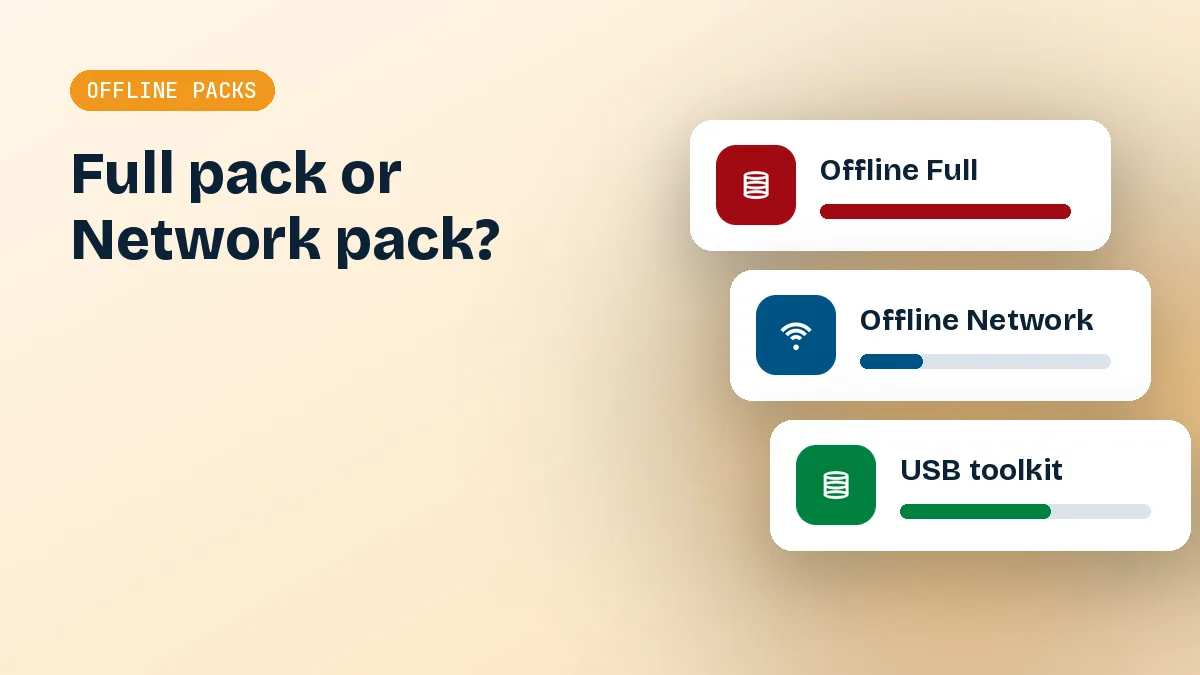
DriverPack Offline Full contains drivers for an enormous range of hardware, from decades-old sound cards to recent chipsets, across 32-bit and 64-bit systems. That breadth is the whole point, and it explains why the pack runs to many gigabytes. Unpacked, the contents occupy noticeably more space than the archive does, so always plan for the extracted size, not the download size.
Because the pack is so large, it may also be split into several parts. If you receive multiple files with numbered endings, keep them together in one folder and start extraction from the first part.
Where the Network pack fits
There is a second, much smaller offline option: DriverPack Offline Network. It carries only LAN and Wi-Fi drivers, with one job, getting a freshly installed PC online. Once the machine is connected, Windows Update or the online installer can fetch whatever else is needed. For many technicians the Network pack on a small USB stick is the more practical tool, with the full offline set kept for locations that truly have no connection.
Extracting it properly
Use 7-Zip, and be patient
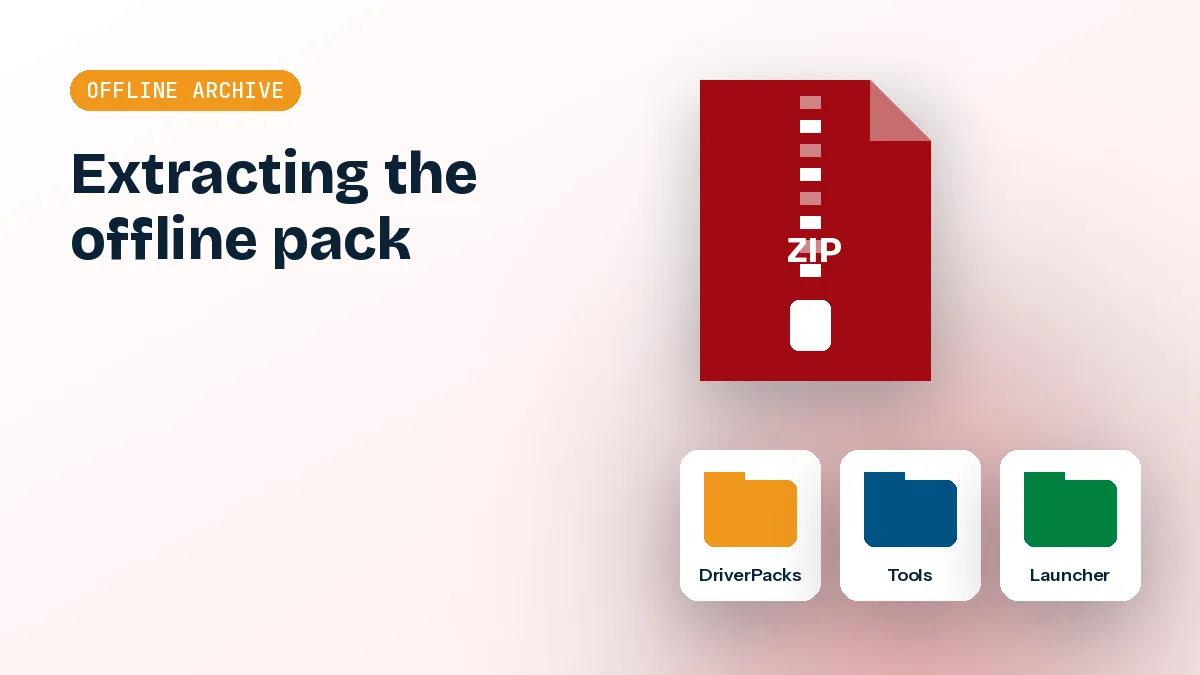
Windows built-in ZIP handling is fine for small files, but it is slow and unreliable on multi-gigabyte archives. Install 7-Zip, right-click the archive and choose Extract to "foldername". That puts the contents in their own folder instead of scattering thousands of files across the destination.
- Pick a destination with plenty of free space and a short path, for example D:\DRP or a folder at the root of the USB drive.
- Run the extraction and leave the machine alone. Heavy disk activity from antivirus scanning will slow it further.
- If 7-Zip reports errors, do not ignore them. Note which file failed, then re-download rather than continuing.
Expect the process to take a while, sometimes well over half an hour, on a spinning hard disk and much less on an SSD. USB 2.0 sticks are painfully slow for this job.
Long paths and disk space
Two problems cause most failed extractions. The first is disk space: if the drive fills mid-way you get a half-built folder that looks plausible but is missing drivers. Check free space before you start, with comfortable headroom beyond the stated size, because temporary files are sometimes created during extraction.
The second is path length. Windows has historically limited paths to 260 characters, and driver packs often contain deeply nested folders with long names. Extract close to the drive root and keep the parent folder name short. Putting the archive inside Downloads\New folder\DriverPack-latest-final and extracting there is asking for trouble. Newer Windows builds can enable long path support, but short paths avoid the question entirely.
Extract onto an NTFS volume if you can. FAT32 cannot store single files larger than 4 GB, which can break large pack components.
Verify before you trust it
Big downloads fail in small ways: a dropped connection, a flaky USB port, a mirror that cut the transfer short. Verification takes minutes and spares you from discovering the damage later, on a customer's desk with the clock running.
Checking integrity
A corrupted pack is worse than no pack, because it fails at the worst moment, usually in front of a customer. You have a few reasonable checks.
First, use the test function in 7-Zip (Test archive on the right-click menu) before extracting. It reads every file and reports mismatches without writing anything. Second, if the source publishes a checksum such as SHA-256, compare it with the value Windows gives you using PowerShell: the Get-FileHash command followed by the path. If the values differ by even one character, the file is not the same. Third, compare the file size with the figure listed on the download page, remembering that approximate figures are only a sanity check.
Not every source publishes a hash. In that case, the archive test and a successful full extraction are the best evidence you have, so be especially careful where you download from.
Antivirus behaviour
Security software can complicate things in two ways. It may scan each of the thousands of extracted files, which slows everything down. It may also flag the launcher as a potentially unwanted application because the online edition presents bundled offers by default. A PUA detection is not a malware verdict, but treat it as a prompt to confirm the source and read each screen carefully.
Do not disable your antivirus entirely. If a scan keeps interrupting extraction, add a temporary exclusion for the destination folder only, then remove it afterwards.
Building a technician USB
Once the pack extracts cleanly, the next question is portability. A pack that lives only on your own PC is of little use when the machine needing drivers is across town.
Choosing and preparing the drive
A USB 3.0 stick or, better, a small portable SSD makes the difference between a pack that is pleasant to use and one you dread. Capacity should exceed the extracted size with a good margin. Format as NTFS or exFAT; both handle large files, and exFAT is readable on more systems, including recent macOS and Linux.
Format deliberately. Quick format is fine for a new drive, but run a full format on an old stick you do not trust, since failing flash memory will damage large copies quietly.
Folder structure in general terms
The exact layout varies between releases, so open the extracted folder and look rather than assuming. In general you will find a main launcher executable at the top level, alongside several folders holding the driver packages grouped by category, such as network, audio, graphics and chipset, plus supporting files the launcher reads. Do not rename, move or delete items inside, even if some folders look redundant, because the launcher expects to find its data where it was placed.
A clean convention helps a workshop: one folder at the drive root, named for the pack and its date, for instance DRP followed by the month and year you downloaded it. Keeping the date in the name tells you at a glance how stale it is.
Running the launcher from the extracted folder
On the target PC, plug in the drive, open the folder and start the launcher from there. Run it directly from the USB or copy the whole folder locally first; the local copy is faster, though it uses space. If SmartScreen shows a warning, choose More info and confirm the file before continuing.
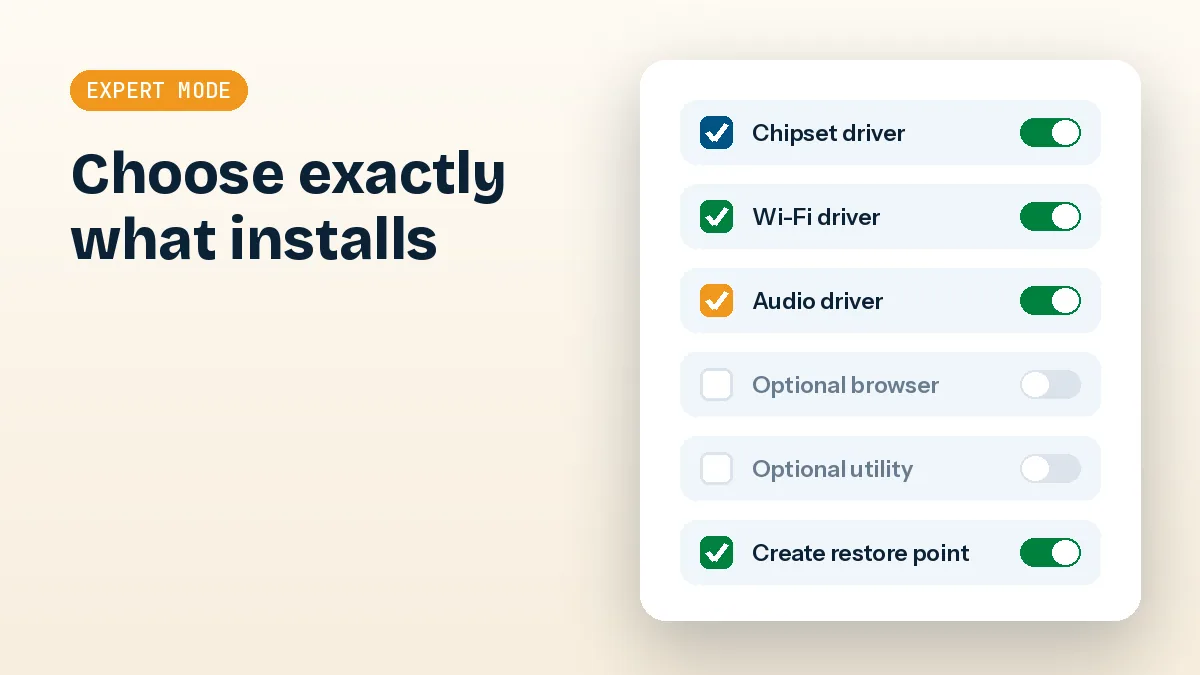
When the interface appears, use Expert Mode to review what will be installed and to untick any bundled software. Create a restore point first, install in small groups, and restart between them. If you are working on a machine with no network, start with the LAN or Wi-Fi driver, then see what Windows Update can finish by itself. For other options, see the download section and the guides.
Keeping the pack fresh
An offline pack is a snapshot. The day you download it, it is as current as it will ever be, and every week after that it drifts further behind new hardware and new Windows builds.
Refreshing old packs
Driver packs age. A two-year-old copy may not include current drivers for new laptops, and newer Windows 11 machines are strict about packages that predate their security features. Decide on a refresh habit, such as every few months, and stick to it.
Do not extract a new pack over the old one. Mixed files from two releases can leave an inconsistent folder. Download the new archive, verify it, extract into a new dated folder, test it on a spare machine, and only then delete the old copy.
Matching the pack to the Windows version
Older systems and newer systems need different approaches. For Windows 7, including 64-bit installs, a pack from the era of that system often works better than the newest, since newer drivers may drop support. Windows 10 64-bit and Windows 11 machines should lean on recent packs, and Windows Update should be allowed to handle graphics and chipset where possible. Keep a note of which pack worked on which model; that record is as valuable as the pack itself. A simple text file on the USB drive, listing the pack date, the machines it was used on and any driver you had to skip, becomes a genuine time saver after a few jobs.
Short version
Treat the DriverPack Solution offline zip file as a toolkit you maintain, not a download you forget. Extract it with 7-Zip near the drive root, verify it, keep it dated and use Expert Mode every time. Done that way, it is a reliable rescue disk for PCs that cannot get online by themselves.