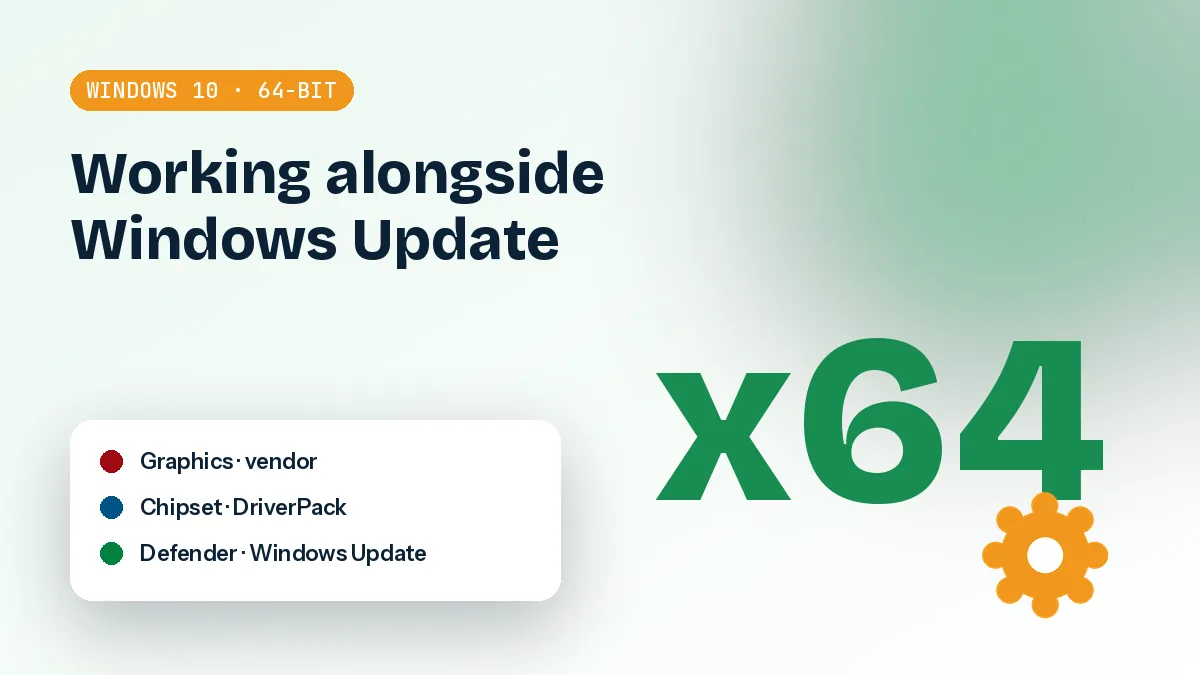
Windows 10 already installs drivers by itself, so why would anyone add another tool? Because the built-in choice is often generic and sometimes wrong. This guide explains how DriverPack Solution Windows 10 64 bit setups behave next to Windows Update, and how to keep your results.
How Windows Update and a driver tool share the work
Windows 10 handles drivers in layers. During setup it uses what is in the driver store, then it asks Windows Update for anything newer or better matched. That works well for common hardware. It works less well for chipsets, audio codecs and some Wi-Fi cards, where the version delivered can be basic or several revisions behind.
What DriverPack Solution actually does
The tool reads the hardware IDs of your devices, compares them with its database and installs matching drivers. It is freeware and runs on 64-bit Windows 10 as well as older releases. The online launcher is small and downloads only what your machine needs. The offline packs hold the drivers locally, which suits a PC with no connection or a technician who services many machines.
It does not know your intentions. If Windows Update later finds what it considers a better match, it can replace what you installed. That is the root of most "my driver changed back" complaints.
There is also a timing issue. Windows Update drivers tend to arrive a few days after a major update or a first connection to the internet, so a driver you installed on day one can be swapped quietly on day three. If you have ever fixed a problem, rebooted a week later and found it back, this is the likely cause. It is not a fault in either tool; they simply do not coordinate.
It also helps to know which build you are running. A fully updated 64-bit Windows 10 installation behaves differently from an early release, and the Start menu path to some settings has moved over the years. Check Settings, System, About before you follow any step in this guide.
Where each approach wins
Windows Update is good for security-related fixes and for widely used hardware. A driver tool is useful after a clean install, on hardware with no Windows Update match, or when a device shows a yellow warning. Neither is always better. A reasonable approach is to let Windows do its first pass, then use the tool for whatever is still missing or clearly outdated.
On a freshly installed system, I usually connect to the network, let Windows Update run until it stops offering things, and only then open Device Manager. Whatever is still flagged is the real work list. Starting that way avoids installing the same driver twice and makes it obvious which devices Windows could not handle on its own.
Some people also prefer the offline pack for this job, especially on a reinstall where the network adapter is the first thing missing. The small network-focused pack exists for exactly that case, and it saves a trip to another computer with a USB stick.
Stopping Windows Update from overwriting your drivers
If you install a particular driver deliberately, you may want it left alone. There are several ways to do this, from gentle to blunt. Pick the least aggressive one that solves your problem.
Device installation settings
Search for "Change device installation settings" in the Start menu. Older Windows 10 builds offer a choice to download manufacturer apps and icons automatically. Newer builds have moved or trimmed these options, so what you see depends on your version. Turning off the automatic option reduces some of the background activity, but it does not fully stop driver updates through the regular update channel.
Group Policy and the registry
On Windows 10 Pro, the Local Group Policy Editor has a setting under Windows Update to exclude drivers from quality updates. Home editions do not include the editor, but the same behaviour is controlled through a registry value named ExcludeWUDriversInQualityUpdate under the Windows Update policies key. Back up the registry before editing, and remember that this blocks all driver delivery through quality updates, not just the one you care about.
Hiding a single update
Microsoft has published a small troubleshooter, commonly called "Show or hide updates" (wushowhide), which lets you hide one driver update so it is not offered again. It is not part of Windows itself and Microsoft no longer promotes it, so treat it as a fallback. It is useful when one specific driver keeps coming back after you replaced it.
The process is simple: run the tool, choose to hide updates, and tick the driver that keeps returning. Windows will skip it until you unhide it. If the tool will not start on your build, do not spend an hour on it; the policy method is more dependable.
Blocking drivers is a trade-off. If you turn off driver delivery completely, you take responsibility for updating things yourself. Check manually every few months.
Priorities: GPU, audio and chipset
When you can only do a few things properly, do these in order. They make the biggest difference for stability and performance.
Chipset first
Chipset drivers sit underneath everything else: storage controllers, power states, USB. On Intel and AMD platforms, installing the chipset package early tends to clean up unknown devices and can improve sleep and wake behaviour. It rarely produces a dramatic visible change, which is why people skip it and then wonder about odd issues later.
If you are unsure which chipset you have, the Hardware Ids on a device in Device Manager will show the vendor code. Intel and AMD use different packages, and installing the wrong family just wastes time. A good tool should select the correct one automatically, but it is worth a glance.
Graphics next
Windows Update will usually provide a working graphics driver, but it is often not the newest. Gamers and anyone using creative software should treat the GPU vendor's own package as the preferred source for NVIDIA and AMD cards. A driver tool is perfectly good for getting a clean baseline, though you may want to follow it with the vendor installer for a current build.
One caution: do not stack graphics drivers on top of each other repeatedly. If you are changing from one source to another, do it once, restart, and confirm the result before trying again. Repeated installs from different sources are a common cause of flicker, black screens and settings that refuse to save.
Audio and the rest
Audio is the classic case of "works but not properly". Windows may install a generic High Definition Audio driver, so sound plays, but the vendor control panel, surround settings or microphone enhancements are absent. Realtek and similar codecs benefit from a matching driver. After that, handle network cards, card readers, Bluetooth and fingerprint sensors.
Network and Bluetooth drivers deserve a quick test after installation because they are the ones you notice most when they fail. Connect to Wi-Fi, pair a device and check that sleep and wake do not drop the connection. A fingerprint sensor on a laptop is worth testing too, as the wrong driver can leave it listed as working while Windows Hello still refuses to enroll.
Laptops and desktops are not the same job
A desktop motherboard is fairly predictable. A laptop is not, and treating it the same way is how people end up with a broken touchpad or a battery that drains faster than before.
Laptops need more caution
Laptop makers customise drivers for hotkeys, brightness controls, hybrid graphics and power profiles. A generic replacement can install fine and still break the function keys or stop the discrete GPU from switching on. For chipset, power management and touchpad drivers on a laptop, the manufacturer's package for your exact model is generally the safer source. A tool like DriverPack Solution is more useful for the leftovers, such as unknown devices and older components.
Desktops are more forgiving
On a desktop you mostly deal with standard parts: a motherboard chipset, a separate graphics card, onboard audio and a network adapter. Automatic matching works well here. If you built the machine yourself, the board vendor's download page is a good cross-reference to compare against.
Desktops with a separate graphics card have a small bonus: if an update goes wrong, you can often fall back to the motherboard's video output to get a picture on screen and repair it. A laptop with a faulty display driver offers no such second route, which is another reason to be careful there.
Restore points and checking your work
Drivers are one of the few things that can stop Windows from booting. A few minutes of preparation costs very little.
Create a restore point first
Open System Protection from the Start menu, select your system drive and make sure protection is on. Create a restore point and give it a clear name. DriverPack Solution can create one itself, but confirm that it exists before you proceed. System Restore does not capture everything, so it is a safety net and not a full backup. Important files should be copied elsewhere separately.
Also confirm how much disk space System Protection is allowed to use. If it is set very low, older restore points vanish quickly, and the one you need may already be gone. A few gigabytes is usually enough for a driver session.
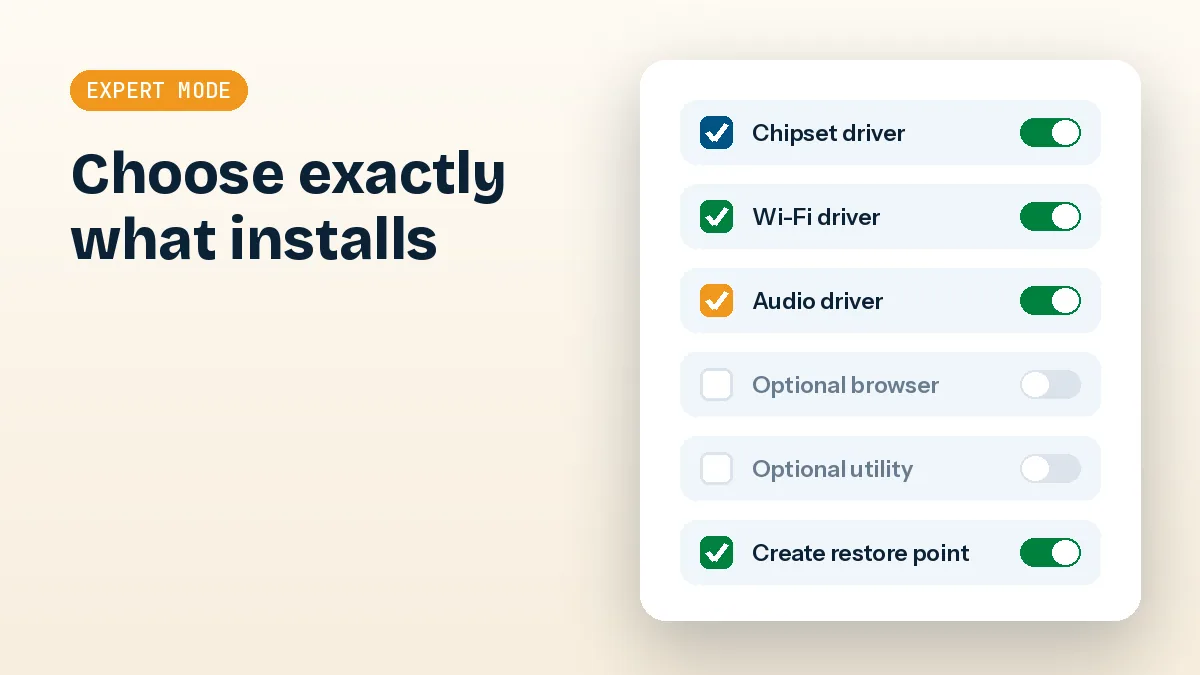
Use Expert Mode in the launcher. It lets you untick the bundled extra software that the default view offers and choose individual drivers. Some antivirus programs flag the installer as a potentially unwanted application because of those bundled offers, which is another reason to review each screen rather than click through. If you want a larger set for a machine that may not stay online, the download options include offline packs.
Verify in Device Manager
After installation and a restart, right-click Start and open Device Manager. Look for yellow warning icons and for entries under "Other devices". Open the Properties of key devices and read the Driver tab: provider, date and version. A driver dated within the last few years from the real hardware vendor is a good sign. A Microsoft-provided driver for a graphics card usually means the specific one has not been installed.
Pay attention to the Hardware Ids as well if a device refuses to behave. Compare them with what the vendor lists for the driver you installed. If the IDs are not covered, the driver may only be partly compatible, and Windows will quietly keep using something else for that device.
If something behaves badly, use Roll Back Driver on that same tab. If that button is greyed out, System Restore is your fallback. For deeper checks, the Event Viewer under Windows Logs, System often records driver failures with a clear name.
Keeping it simple from here
On 64-bit Windows 10 the best approach is moderate. Let Windows Update handle what it does well, use a driver tool to fill the gaps, protect deliberate choices with the least aggressive blocking method, and always check Device Manager afterwards. More guides like this are in the guides section.